

Application stages
Troubleshoot stage movement, checklists, and pipeline behavior.
Use this guide when an application cannot move stages, appears in the wrong stage, or does not show the stage options a user expects.
Stage issues usually come from the selected pipeline, the current stage, checklist requirements, workflow rules, access scope, or an application being filtered out of the current view.
Confirm the application is in the right pipeline
Open Pipelines from the main navigation. This opens the Applications work area.
Check the selected view:
| View | What to check |
|---|---|
| List view | Search for the application, then check its pipeline, stage, status, priority, assignee, and scope picker. |
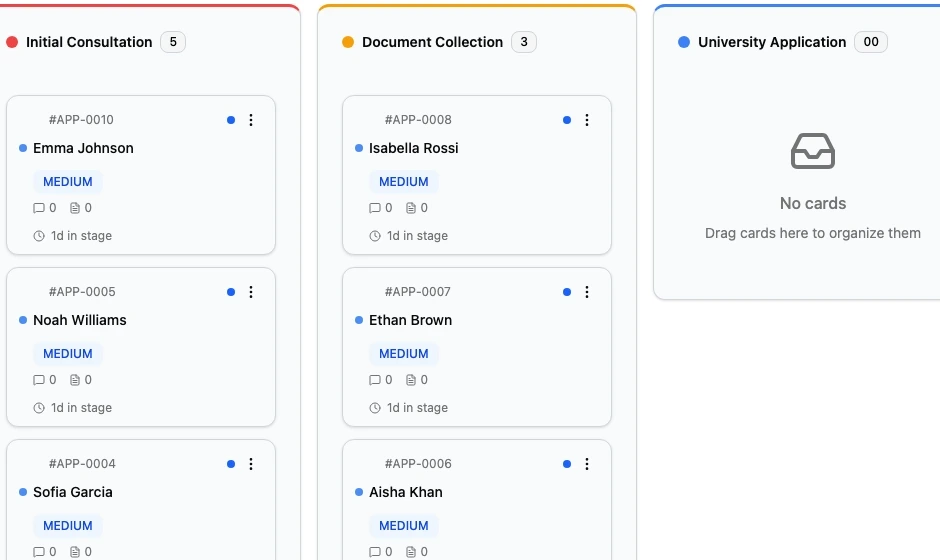
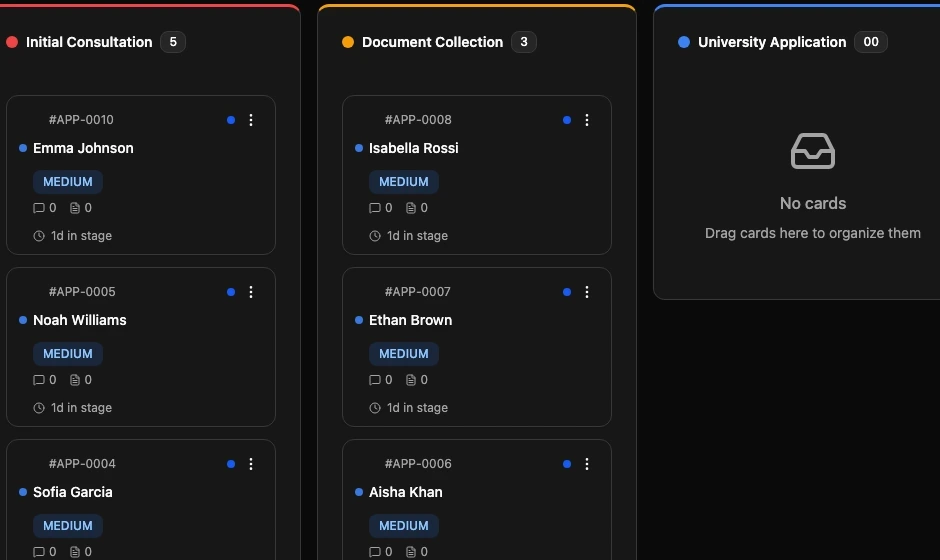
| Board view | Confirm the selected pipeline. Board view groups applications by stage for one pipeline at a time. |
If the application appears in list view but not board view, the board may be showing a different pipeline. Switch to the correct pipeline before changing the stage.
Confirm the stage change path
Users can move an application through stages from the stage selector in a list row, the application detail panel, or board interactions when their role allows it.
Before moving an application:
- Confirm the application number and student name.
- Confirm the current pipeline.
- Confirm the current stage.
- Choose the target stage.
- Read the Change Application Stage dialog before confirming.
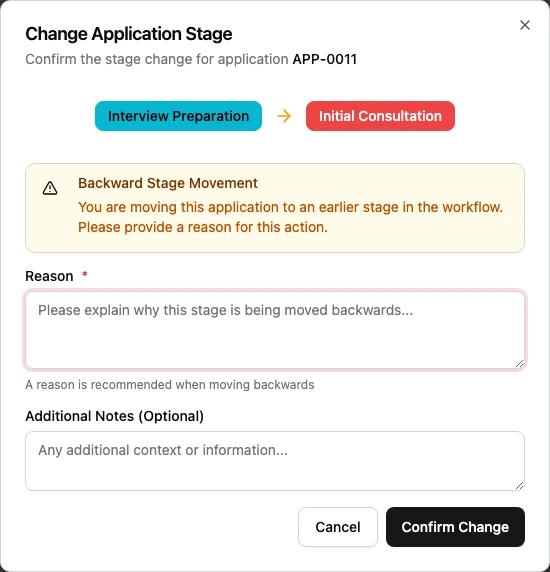
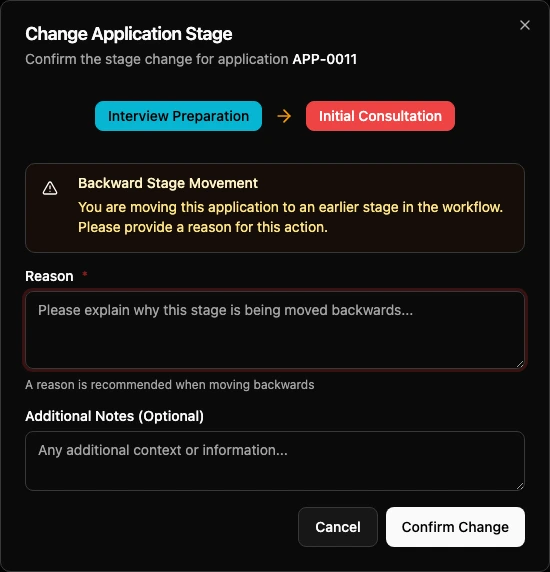
The dialog shows the current stage, target stage, warnings, checklist messages, and reason fields when they apply.
Stage selector is missing or disabled
If the user cannot change the stage, check these items:
| Check | What to look for |
|---|---|
| Role access | The user needs permission to update applications. |
| Scope | The application must be inside the user's allowed scope. |
| Location | The user must be allowed to work with the application's location. |
| Current view | The stage selector may be available in list rows or detail view depending on layout and role. |
| Workflow state | Approval, checklist, or stage rules may block the move. |
| Feature availability | Pipelines and application workflows must be enabled for the workspace. |
If the user can open the application but cannot change it, start with Access and permissions, then check the stage rules below.
Stage Change Blocked appears
The dialog can show Stage Change Blocked when required checklists must be completed before the application moves.
When this happens:
- Read the checklist names shown in the dialog.
- Review how many checklist items are complete.
- Complete the remaining required items.
- Return to the stage selector.
- Try the stage change again.
Hard checklist blocks cannot be skipped from the stage change dialog. If the team believes the block is wrong, an admin should review the checklist template and pipeline stage configuration.
Incomplete Checklists appears
The dialog can show Incomplete Checklists when the stage has soft checklist rules.
Soft rules allow an override, but the user must enter a reason. The reason must be at least 10 characters.
Use an override only when agency policy allows the application to move before the checklist is complete. Good override reasons are specific, for example:
| Weak reason | Better reason |
|---|---|
| Done later | Student already submitted the missing bank statement by email. Counselor will upload it today. |
| Not needed | University waived the document after reviewing the student's prior submission. |
| Manager said ok | Manager approved moving to Pre-Departure while final checklist item is confirmed. |
If users override soft checklists often, review the checklist setup. The rule may be too strict for the real process.
Backward Stage Movement appears
The dialog shows Backward Stage Movement when the user moves an application to an earlier stage. Edmissa recommends a reason for this action.
Use backward movement for real corrections, such as:
| Situation | Example reason |
|---|---|
| Missing requirement | Returned to Document Collection because the bank statement was rejected. |
| Wrong stage selected | Moved back to Initial Consultation after the application was opened too far ahead. |
| Student changed plan | Returned to University Application while the counselor confirms the new program choice. |
Do not move applications backward just to clean up reports. The stage should match the actual work state.
Application is in an unexpected stage
Check these items:
| Check | Why it matters |
|---|---|
| Pipeline | The stage belongs to the selected pipeline. A similarly named stage in another pipeline is different. |
| Board view | Board view only shows stages for the selected pipeline. |
| Timeline or activity | Stage movement history can explain who moved the application and when. |
| Bulk changes | A user may have moved several applications at once. |
| Automation | A configured rule may have moved the application after a trigger. |
| Stage order | Moving backward or skipping ahead can create confusion if the reason is unclear. |
If the stage movement looks wrong, correct the stage and add a clear reason so the next user understands what changed.
Stage change fails after confirmation
If the user confirms the move but the application returns to the old stage, check:
| Check | What to do |
|---|---|
| Permission | Confirm the user can update applications in the current scope. |
| Location access | Confirm the application is in a location the user can update. |
| Required checklist | Complete hard-blocking checklist items. |
| Override reason | For soft blocks, enter a reason with at least 10 characters. |
| Browser state | Refresh the list and reopen the application. |
| Configuration change | An admin may have changed the pipeline or stage while the user was working. |
If the problem repeats for one stage only, review that stage's configuration in Pipeline stages.
Admin checks
Admins should check configuration in this order:
- Open the pipeline and confirm the stage exists.
- Confirm the stage order and whether the target stage is active.
- Review stage checklists and blocking mode.
- Review any stage approvals or rules.
- Review pipeline form management if stage-specific forms are involved.
- Confirm application fields required by the workflow are present.
- Test with a sample application before changing live team guidance.
Related guides
| Guide | Use it for |
|---|---|
| Applications | Create, update, and move applications through stages. |
| Pipelines | Understand how application workflows are organized. |
| Pipeline stages | Configure stage behavior, requirements, and rules. |
| Pipeline form management | Control which forms apply at pipeline and stage level. |
| Checklists | Configure required and soft-blocking checklist work. |
| Access and permissions | Check whether the user can update the application. |