

Access and permissions
Troubleshoot missing pages, disabled actions, and record access issues.
Use this page when a user cannot see a page, cannot take an action, or cannot find work they expect to handle.
Access issues usually come from one of four places: role permissions, data scope, location assignment, or account status.
How access is decided
Edmissa combines several checks before showing a page, list, action, or item.
| Check | What it controls |
|---|---|
| Account status | Whether the user can sign in and work. |
| Role assignment | Which reusable permission set applies to the user. |
| Data access level | Whether the user has No Access, View Only, Manage Records, or Full Control for an area. |
| Data scope | Whether the user can see Own, Assigned, Team, or All work. |
| Location assignment | Which branch or operating location the user belongs to. |
| System setting access | Which admin settings pages the user can open. |
| Feature availability | Whether the workspace has the feature enabled. |
| Workflow rules | Whether a stage, checklist, approval, or document rule blocks an action. |
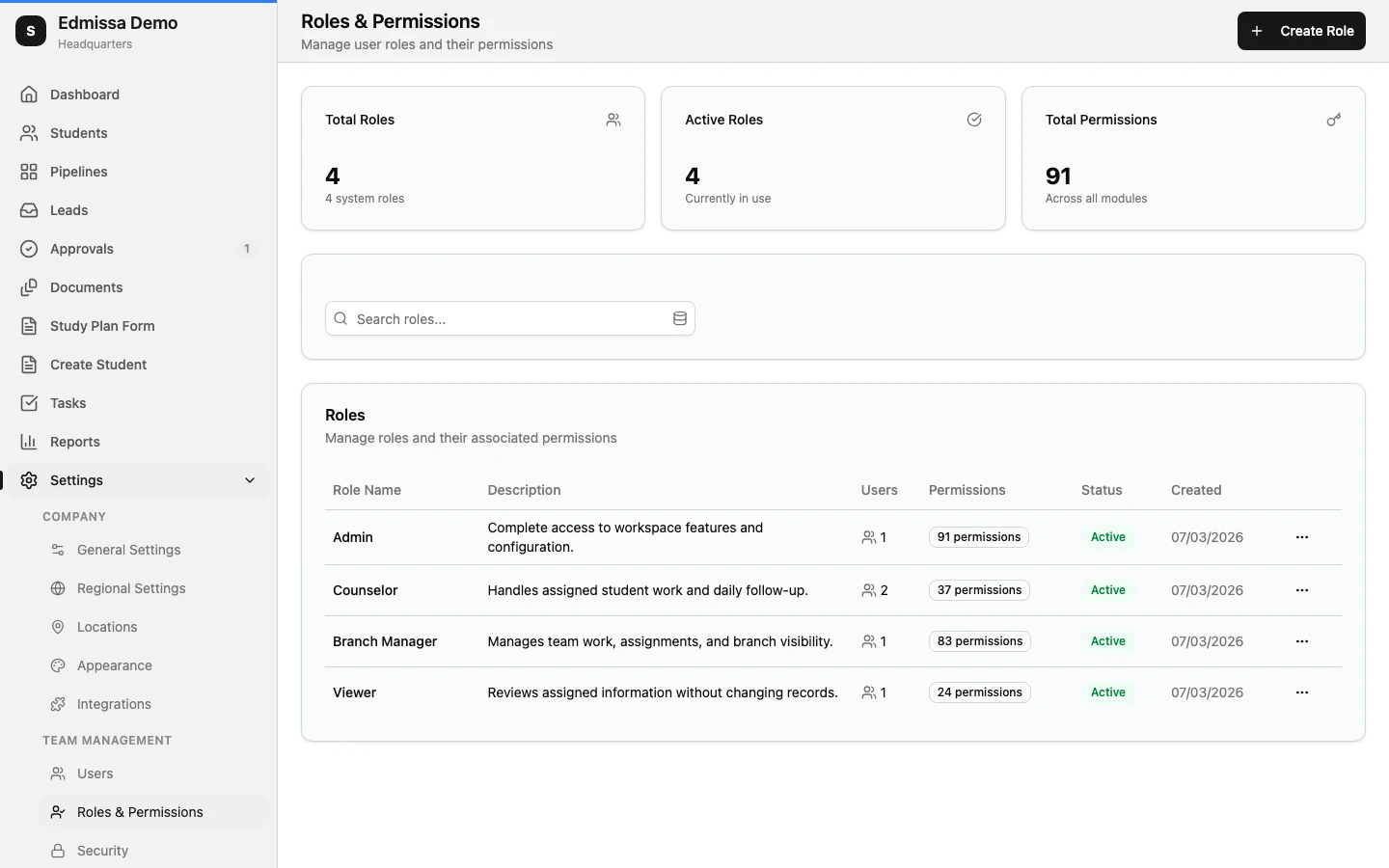
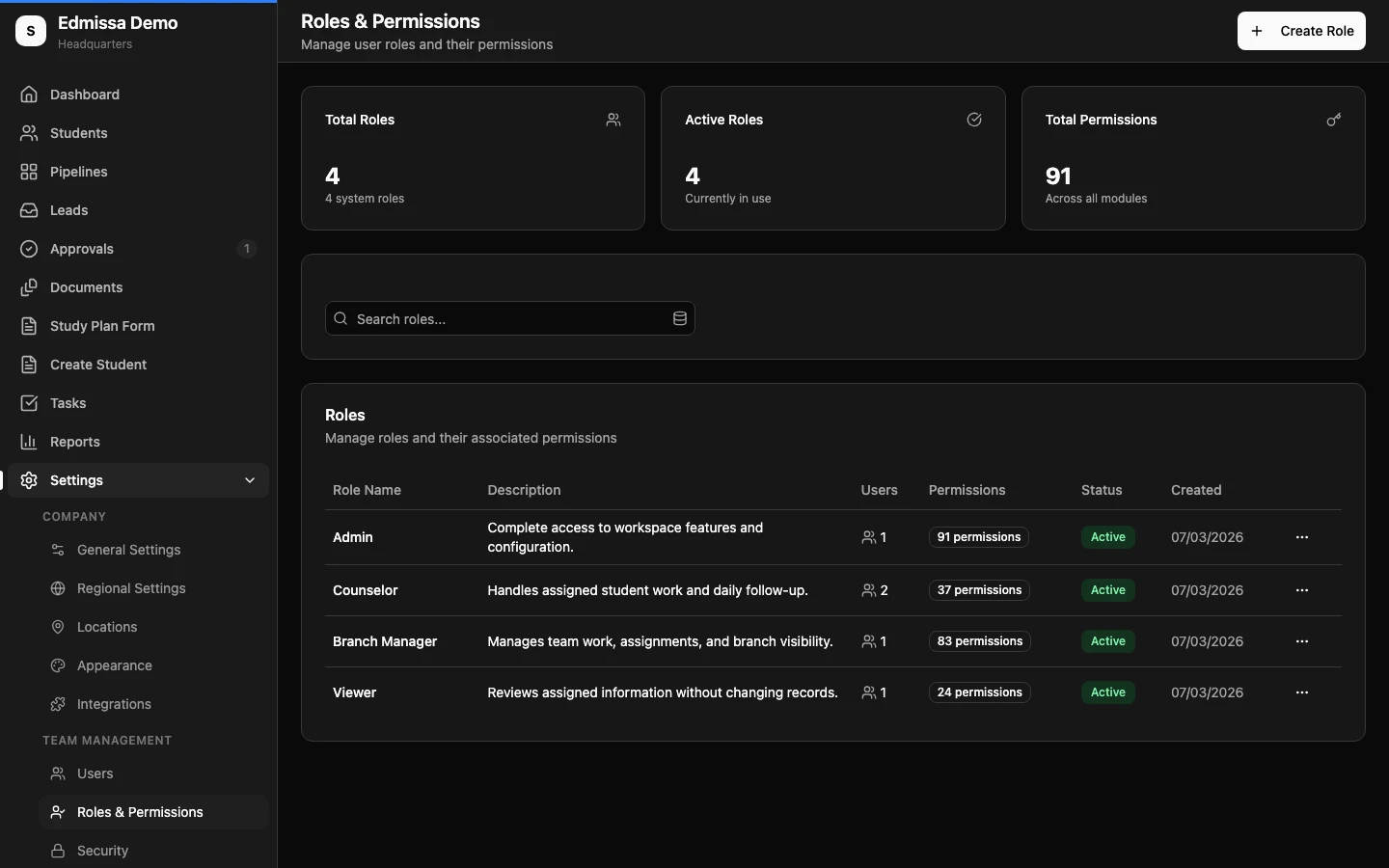
The Roles & Permissions page shows the reusable roles, total permission counts, active role status, and the Create Role action.
Access levels and scope
When editing or creating a role, data areas use these access levels:
| Access level | What it means |
|---|---|
| No Access | The user cannot use that area. |
| View Only | The user can view work inside the selected scope. |
| Manage Records | The user can create, edit, and view work inside the selected scope. |
| Full Control | The user has broader control, including delete and export where the area supports it. Full Control requires Team or All scope. |
Data scope narrows what the access level can touch.
| Scope | What it means |
|---|---|
| Own | Work created by the user. |
| Assigned | Work assigned to the user or created by the user. |
| Team | Work connected to the user's team or location. |
| All | Work across the workspace. |
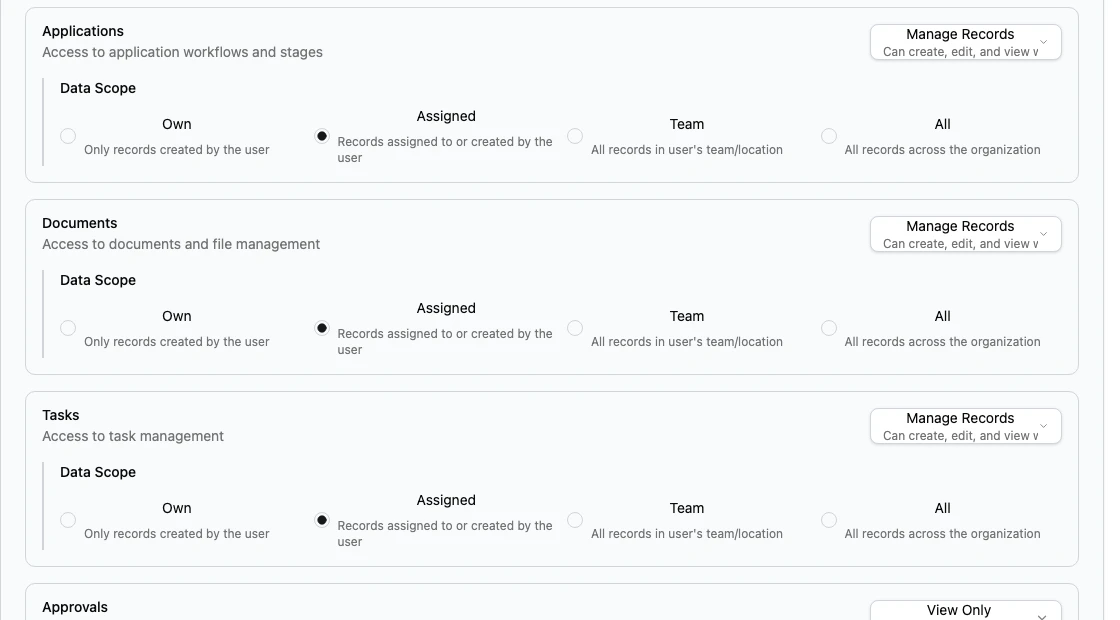
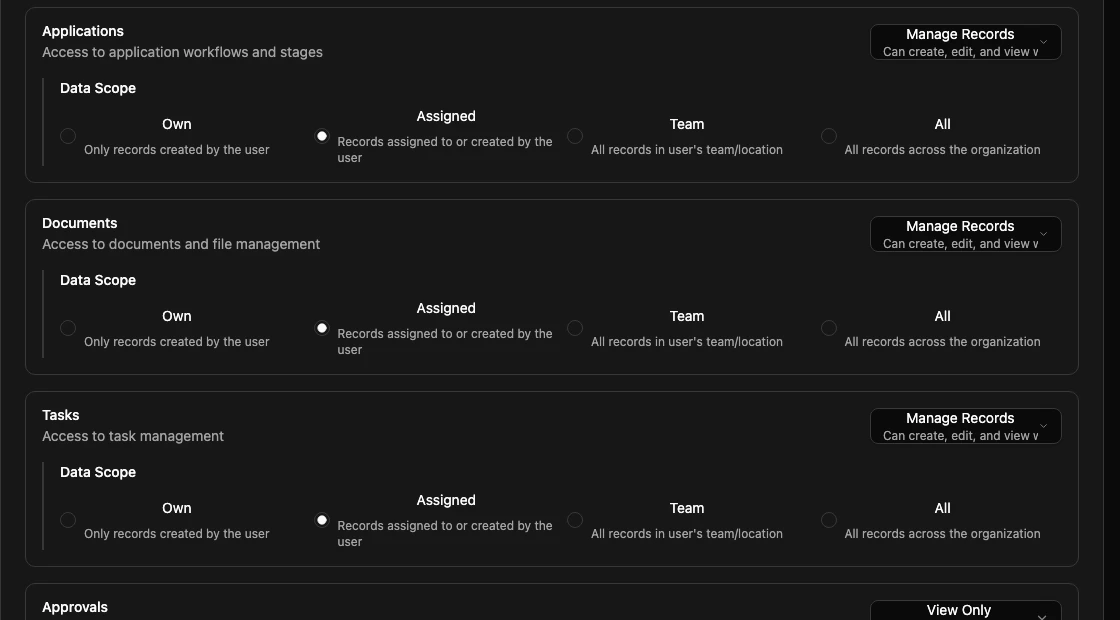
If a page shows a scope picker, the visible options come from the user's role. A user with only one available scope may not see the picker at all.
Quick checks
| Check | What to look for |
|---|---|
| Account status | The user should be Active and not locked. |
| Invite status | A Pending Invite user may still need to finish password setup. |
| Role assignment | The user should have at least one role that matches their job. |
| Data access level | The role should have View Only, Manage Records, or Full Control for the needed area. |
| Data scope | The record should fall inside the user's Own, Assigned, Team, or All scope. |
| Location assignment | The user should belong to the location connected to the record or workflow. |
| System setting access | The role should include the related settings permission for admin pages. |
| Feature availability | The workspace plan or configuration should include the feature. |
User cannot open a settings page
Likely causes:
| Cause | Fix |
|---|---|
| The role does not include the related system setting. | Edit the role and enable the needed setting, such as User Management, Role Management, Field Configuration, or Pipeline Configuration. |
| The user has a daily work role but no admin role. | Assign an admin role only if the user should manage configuration. |
| The page belongs to a feature that is not enabled. | Review the workspace configuration or plan. |
Do not solve this by giving broad admin access unless the user truly needs to manage settings.
User sees Access Denied
Some pages show an access message instead of the page. For example, the Documents page can show Access Denied with the message that the user does not have permission to access the document management area.
Use this response:
- Confirm the user is signed in with the correct account.
- Check whether the feature is enabled for the workspace.
- Check the user's role.
- Confirm the role has at least View Only access for that area.
- Confirm the role has the needed system setting if the page is under Settings.
Do not ask the user to refresh repeatedly if the access message returns every time. The role or feature configuration needs review.
User cannot see a student profile or application
Likely causes:
| Cause | Fix |
|---|---|
| Scope is too narrow. | Check whether the role uses Own, Assigned, Team, or All scope. |
| The record is assigned to another user. | Reassign the record or widen the role scope if that matches the job. |
| The user is in the wrong location. | Add the correct location to the user or update the record's location. |
| The role has No Access for the data area. | Change the data access level to View Only or Manage Records. |
Test with a sample record after changing scope or location access.
User can view but cannot edit
Likely causes:
| Cause | Fix |
|---|---|
| The role uses View Only. | Change the access level to Manage Records if the user should edit. |
| The record is outside the user's scope. | Assign the record to the user, adjust the user's location, or update the role scope. |
| The action needs Full Control. | Use Full Control only for users who should have delete, export, assignment, approval, or management actions. |
| A stage, checklist, or approval rule blocks the action. | Review the related pipeline stage, checklist, or approval setup. |
| The item belongs to a different location. | Update the user's location assignment or move the work only if that matches the agency process. |
Avoid changing a role used by many users until you know how many people will be affected.
User can edit one area but not another
Roles are configured by area. A user may be able to manage applications but only view documents, or manage Leads but not open settings.
Check the role section for the exact area:
| Area | Check this access |
|---|---|
| Leads | Lead access and Lead management actions. |
| Students | Student profile access and scope. |
| Applications | Application access, assignment, approval, and pipeline permissions. |
| Documents | Document read, upload, review, delete, and export access. |
| Tasks | Task read, create, update, assign, and manage access. |
| Settings | The specific system setting permission for the admin page. |
If the role looks correct, check whether the action is blocked by a workflow rule. For example, an application stage move can be blocked by required checklists even when the user can edit the application.
User cannot be activated
Likely causes:
| Cause | Fix |
|---|---|
| No location assignment | Assign at least one active location to the user. |
| Missing role | Assign at least one role. |
| Login contact is incomplete | Confirm the required email or phone field for the workspace login method. |
After fixing the account, activate the user again from User Management.
Invite or password setup is not working
Likely causes:
| Cause | Fix |
|---|---|
| Invite is still pending | Ask the user to open the invite link and set a password. |
| Invite link expired | Send a new invite or reset the user's password. |
| Password does not meet policy | Review the password policy and set a compliant password. |
| Account is locked | Unlock the account after confirming the login issue is legitimate. |
| User has stale sessions | End sessions after a password reset or suspected account issue. |
Password resets should be handled by a trusted admin.
Role changes did not behave as expected
Check these items:
| Check | Why it matters |
|---|---|
| Multiple roles | The user may still have access from another assigned role. |
| Affected users preview | Role edits can affect every user with that role. |
| Scope choice | Manage Records with Assigned scope behaves very differently from Manage Records with Team scope. |
| System settings | Admin pages are controlled by system setting toggles, not only data access. |
| Location assignments | Team and location context can change what users see. |
| Active sessions | A user may need to sign out and back in after a role or password change. |
If the role is shared by many users, copy the role and test changes on one user before updating the original role.
Role cannot be deleted
Likely causes:
| Cause | Fix |
|---|---|
| Users still have the role | Remove or replace the role on those users first. |
| The role is protected | Keep the protected role and create a custom role instead. |
| The role is still part of an access review | Leave it inactive or document the replacement before deleting it. |
Deletion is not the best way to remove access from active users. Change the users' role assignments first.
User cannot be deleted or deactivated
Likely causes:
| Cause | Fix |
|---|---|
| Admin is trying to delete their own account | Ask another trusted admin to make the change. |
| Admin is trying to deactivate their own account | Ask another trusted admin to make the change. |
| Historical work needs to remain visible | Deactivate instead of deleting. |
Use Delete only when the account should no longer exist. Use Deactivate when the person should no longer sign in but their historical assignments and activity should remain understandable.
Related guides
| Guide | Use it for |
|---|---|
| Users | Check account status, role assignments, locations, supervisors, passwords, and sessions. |
| Roles | Update the reusable role that controls permissions for many users. |
| Permissions and scope | Understand why a user can or cannot see a page, record, or action. |
| Permissions reference | Look up access levels, scopes, data areas, and guardrails. |
| Locations | Check location assignments and branch access. |
| Pipeline stages | Check stage rules, requirements, and workflow restrictions. |