

Pipeline form management
Choose which form template users see at each application pipeline stage.
Pipeline Form Management controls which form template users see while working inside each stage of an application pipeline. Use it when the form should change by stage, by role, or both.
This page does not replace form templates or fields. It connects existing form templates to the right pipeline stages so users see the information they need at the right moment.
What this guide helps you configure
Use this guide when one form is not enough for the whole pipeline.
Pipeline Form Management can help you:
- Show a focused form during a specific stage.
- Show different forms to different roles in the same stage.
- Keep early-stage forms simple while later stages collect detailed application information.
- Send users to Application Fields when fields need to be created or changed.
- Send users back to Edit Pipeline when stage order or stage names need to be updated.
Before you start
Prepare these items before creating stage form rules:
| Item | Why it matters |
|---|---|
| Pipeline stages | Rules are attached to stages, so the stage list should be correct first. |
| Form templates | Rules can only assign templates that already exist. |
| Application fields | Form templates depend on the fields your team has configured. |
| Roles | Role-specific rules depend on the roles your team uses. |
| Sample application | You need a safe record to test which form appears at each stage. |
Start simple. If the same form works for every stage and role, you do not need stage form rules yet.
Open Pipeline Form Management
Use this path when you want to manage forms for a pipeline:
- Open Settings.
- Go to Pipelines.
- Stay on Active Pipelines.
- Find the pipeline you want to update.
- Open the three-dot menu on the pipeline card.
- Select Manage Forms.
The page title is Pipeline Form Management. The subtitle says Configure form rules for each stage in the selected pipeline.
The top actions are:
| Action | What it does |
|---|---|
| Application Fields | Opens the field settings used by application forms. |
| Edit Pipeline | Opens the pipeline configuration screen. |
| Back to Pipelines | Returns to Pipeline Management. |
What the screen includes
Pipeline Form Management has two main areas.
| Area | What it does |
|---|---|
| Stage Form Rules | Defines which form template each role sees at every pipeline stage. |
| Available Form Templates | Shows the templates that can be assigned to stage form rules. |
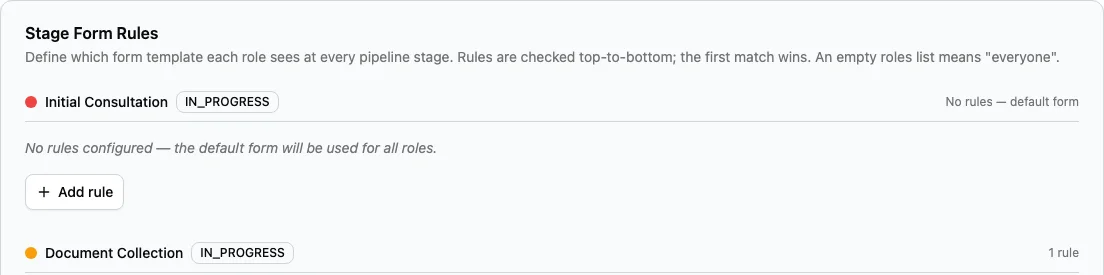
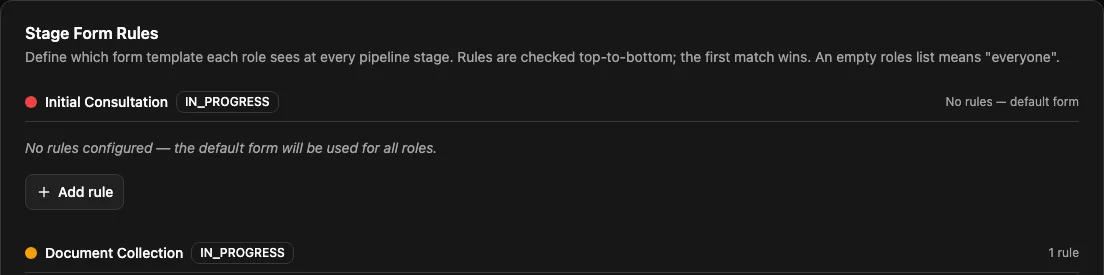
Stage Form Rules is organized by stage. Each stage shows its stage name, stage type, and how many rules are configured. If a stage has no rules, the default form is used for all roles.
Available Form Templates shows the templates available for the pipeline. Each template can show its name, description, number of visible fields, and number of required fields.
How a stage form rule works
A stage form rule answers three questions:
| Question | What you choose |
|---|---|
| Which stage? | The stage section where the rule is created. |
| Which form template? | The form users should see in that stage. |
| Which roles? | The roles the rule applies to. |
Rules are checked from top to bottom. The first matching rule is used. You can drag rules to change their order.
If the roles list is empty, the rule applies to everyone. The screen shows this as Everyone or Everyone (default).
Use Add rule to create a rule for a stage. Use the form template selector to choose the template. Use the role selector when only specific roles should use that form. Use the delete button when a rule is no longer needed.
Recommended first version
For the first version, keep form management light:
- Use one default application form for most stages.
- Add a stage form rule only when users need a different form.
- Add role-specific rules only when roles truly need different fields.
- Test each rule with a sample application.
- Review the setup again after the team has used the pipeline for a few weeks.
Avoid creating separate rules for every stage just because the option exists. Too many rules can make the workflow harder to maintain.
Student Visa Processing example
For Student Visa Processing, a practical first version may look like this:
| Stage | Useful form setup |
|---|---|
| Initial Consultation | Use a consultation form for counselors so they can record destination interest, intake, study level, budget, and first-call notes. |
| Document Collection | Use a document review form for counselors or application officers so they can record missing files and review notes. |
| University Application | Use an application submission form for application officers with institution, program, intake, deadline, and submission fields. |
| Acceptance Received | Use an offer update form that captures offer status, offer conditions, and next action notes. |
| Visa Application | Use a visa preparation form for application officers with visa form details, financial evidence notes, submission date, and payment notes. |
| Interview Preparation | Use a preparation form only if the stage applies to enough students. Otherwise, keep this work in tasks or checklists. |
| Visa Approved | Use a short outcome form if the team needs to record approval date, visa document, and final notes. |
| Pre-Departure | Use a support form if the team tracks travel, arrival, enrollment reminders, or handover notes inside the application. |
This is only a starting point. Your agency may need fewer forms if users prefer one application form with clear sections.
How it connects with other settings
Pipeline Form Management controls which form users see. It does not decide whether an application can move to another stage.
Use the related settings this way:
| Setting area | Use it for |
|---|---|
| Fields | Create and maintain the information your team can collect. |
| Form templates | Design the layout users see when they edit application information. |
| Pipeline stages | Configure requirements, approvals, movement controls, access, notifications, and checklists. |
| Pipeline Form Management | Choose which form template appears at each stage and for each role. |
For example, if Visa Application must require a financial evidence field, add the field in Fields, place it on the right form template, then use Pipeline Form Management only if that template should appear specifically during the Visa Application stage.
Test before the team uses it
Before using stage form rules for live work:
- Create or open a sample application.
- Move it to the stage you want to test.
- Sign in or test as a role that should see the form.
- Confirm the expected form appears.
- Confirm the required fields make sense for that stage.
- Repeat the test for any role-specific rule.
- Reorder rules if a more specific rule should be checked first.
- Remove rules that do not change the user experience.
When to change this later
Review Pipeline Form Management when:
- A role says the form has too many fields for their stage.
- A stage needs fields that are missing from the current form.
- A new role starts handling part of the application workflow.
- A country or region variation needs a different form.
- The team changes the stage order or renames stages.
Related guides
| Guide | Use it for |
|---|---|
| Pipelines | Create or review the workflow before assigning forms to stages. |
| Pipeline stages | Configure the stage order, rules, requirements, approvals, access, and notifications. |
| Form templates | Design the forms that stage form rules can assign. |
| Fields | Create the student and application fields that form templates depend on. |
| Applications | See how users work with application forms during daily processing. |