

Checklists
Configure checklist items that help teams complete stage work consistently.
Checklists help admins turn repeatable application and task work into clear steps users can complete. Use checklist templates when your agency wants the same review, preparation, or handoff steps followed every time.
Use this guide when you need to create checklist templates, decide whether a checklist should block progress, and attach checklist work to application stages or tasks.
What this guide helps you configure
Checklist templates affect several parts of Edmissa.
| Area | How checklists are used |
|---|---|
| Application stages | Assign repeatable work to a stage, such as document pack review or visa form review. |
| Stage movement | Block or warn users when an application should not move forward yet. |
| Tasks | Attach a checklist to a task when task completion needs several steps. |
| Approvals | Ask the approver to complete a verification checklist before taking an approval action. |
| Daily work | Show users which checklist items are pending, completed, or overridden. |
Checklists are different from document types. A document type defines a file category, such as Passport or Academic Transcript. A checklist defines human work, such as "Confirm passport is valid for the required period" or "Check financial documents match visa guidance."
Before you start
Prepare these items before creating checklist templates:
| Item | Why it matters |
|---|---|
| Workflow stage | Most application checklists make sense only after the related pipeline stage exists. |
| Owner role | Decide whether the checklist belongs to the application assignee, creator, or anyone with access. |
| Blocking decision | Decide whether incomplete work should only inform users, warn users, or stop progress. |
| Item list | Write the exact steps users should complete. Keep the first version short. |
| Approval process | If checklist completion should trigger an approval, decide who approves and whether any one approver is enough. |
| Test application or task | Use a sample record to confirm the checklist appears and blocks only where intended. |
Start with a few important templates. A short checklist that users trust is better than a long checklist they learn to ignore.
Open checklist templates
Use this path when you want to manage checklist templates:
- Open Settings.
- Select Checklists.
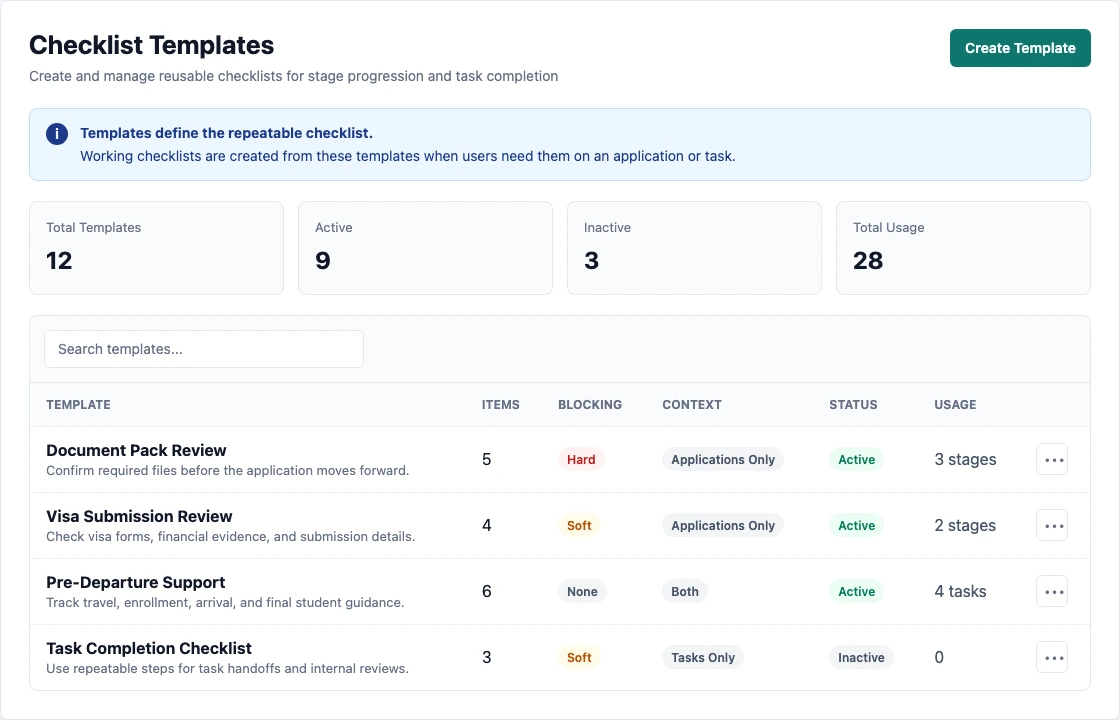
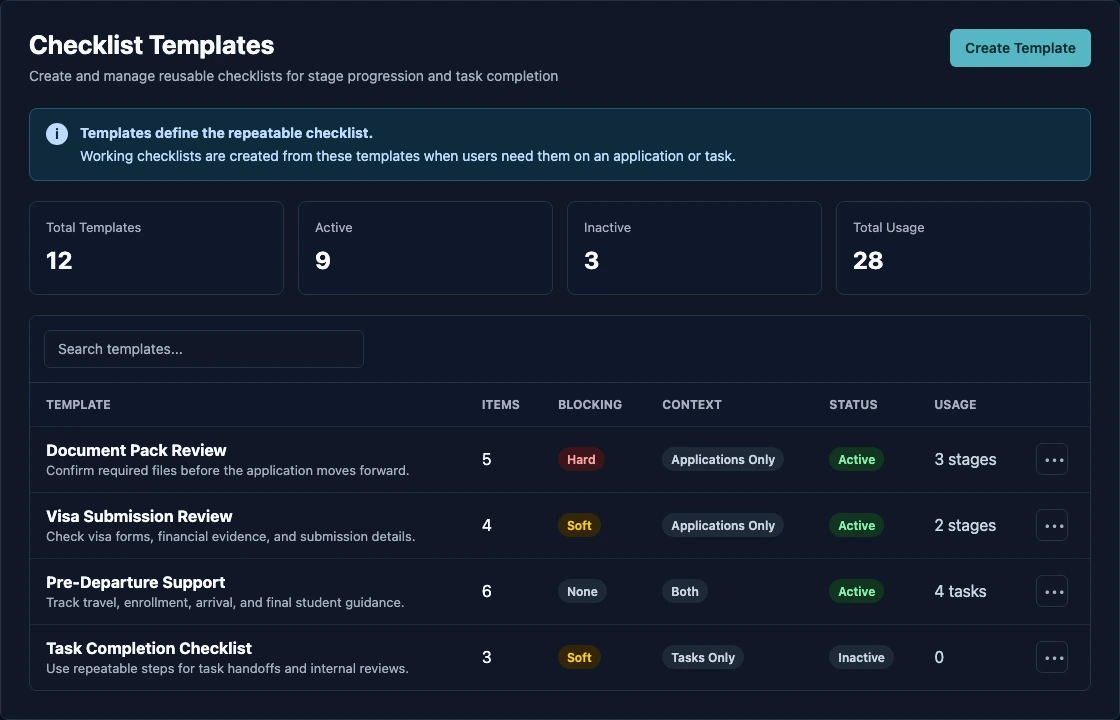
The page title is Checklist Templates. The page includes a Create Template action, summary cards for total, active, inactive, and usage counts, a search box, and a table of existing templates.
The template table shows:
| Column | What it tells you |
|---|---|
| Template | The template name and description. |
| Items | How many checklist items the template contains. |
| Blocking | Whether the template uses None, Soft, or Hard blocking. |
| Context | Whether the template can be used for applications, tasks, or both. |
| Status | Whether the template is Active or Inactive. |
| Usage | Whether the template has active checklist instances or stage assignments. |
Use the row menu to edit, duplicate, activate, deactivate, or delete a template. If a template is already used by stages, tasks, active checklists, or approval verification, deletion may be blocked. Deactivate the template first when you need to stop future use without changing historical checklist records.
How checklist templates work
A checklist template is the reusable setup. A checklist is the working copy created from that template for an application or task.
When a checklist is created from a template, Edmissa copies the template items into the working checklist. Users complete the working checklist on the application or task. Later template edits do not automatically rewrite every checklist that users have already started.
Use the template for the stable process. Use the working checklist for the actual student or application work.
Create a checklist template
Use this flow to create a template:
- Open Settings.
- Select Checklists.
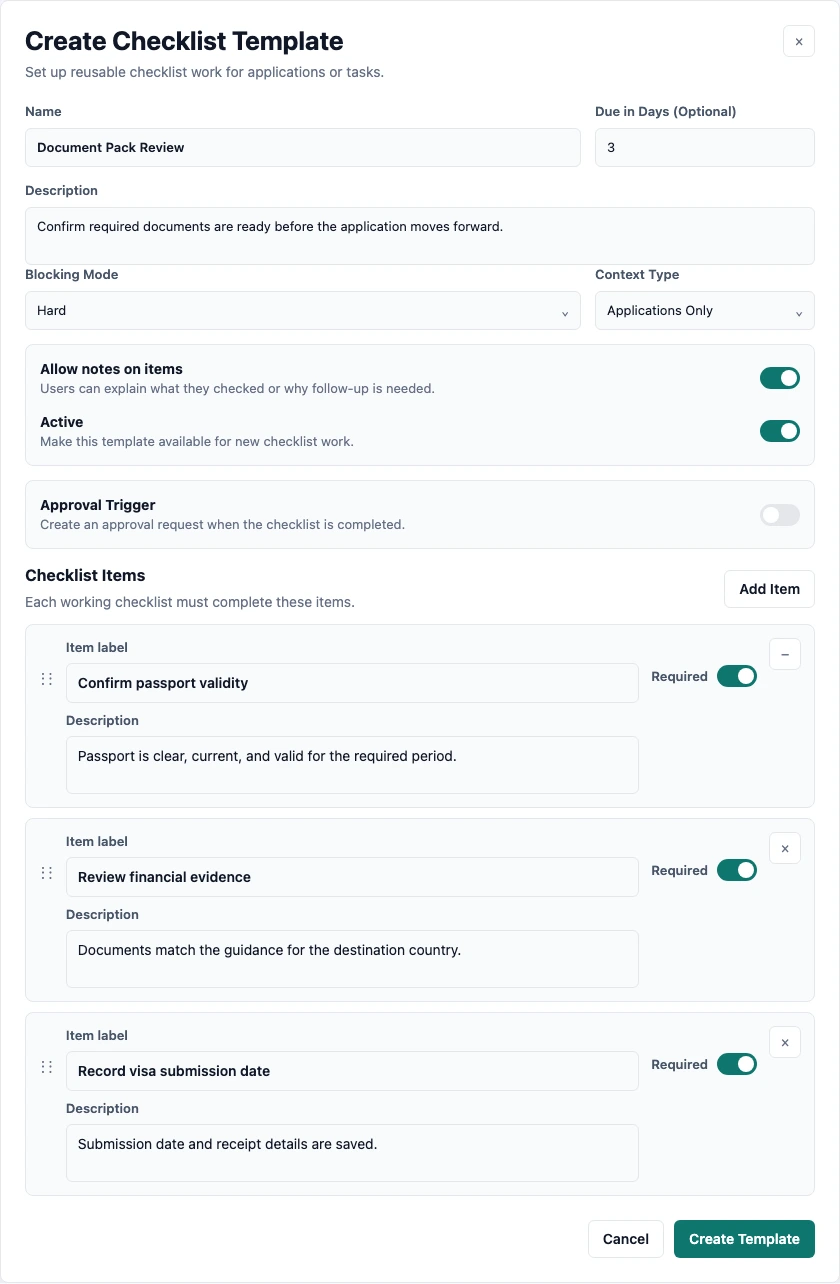
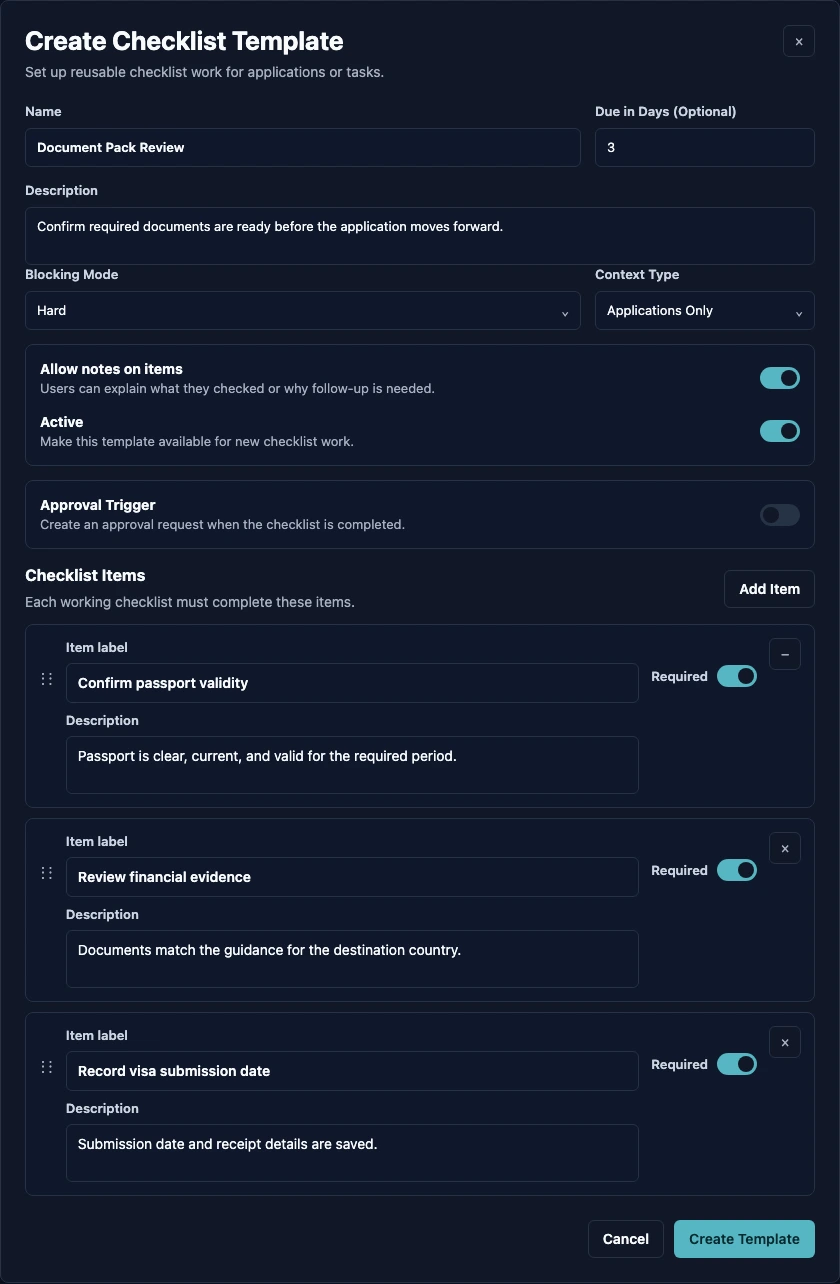
- Select Create Template.
- Enter the Name.
- Add a Description that explains when the template should be used.
- Choose the Blocking Mode.
- Choose the Context Type.
- Add Due in Days if the checklist should have a due date after it is created.
- Decide whether users can add notes on checklist items.
- Keep Active turned on if the template should be available for stages or tasks.
- Configure Approval Trigger only when checklist completion should create an approval request.
- Add checklist items.
- Select Create Template.
Template names must be unique in the workspace. Use names that describe the work, such as Document Pack Review, Visa Submission Review, or Pre-Departure Support.
Blocking mode
Blocking Mode decides what happens when a user tries to complete related work while the checklist is still incomplete.
| Blocking mode | Use it when |
|---|---|
| None | The checklist is informational. Users can continue even when items are incomplete. |
| Soft | Users should complete the checklist, but a permitted user can continue with an override reason. |
| Hard | Users must complete the checklist before they can move forward. There is no bypass. |
Use Hard only for work that should truly stop progress, such as a visa submission review that must be finished before an application moves forward. Use Soft when the team needs a warning but also needs room for real exceptions. Use None for guidance checklists that should not block work.
Soft overrides require a written reason. Use this mode when managers want visibility into exceptions without stopping every edge case.
Context type
Context Type decides where the template can be used.
| Context type | Use it for |
|---|---|
| Both | The template can be used on applications and tasks. |
| Applications Only | The template is for application stages and stage movement. |
| Tasks Only | The template is for task completion. |
Choose Applications Only when the checklist belongs to application processing, such as Document Collection or Visa Application. Choose Tasks Only when the checklist belongs to a task that may exist outside a specific application stage.
Due dates and notes
Due in Days creates a due date when a checklist is created from the template. For example, a value of 3 means the working checklist is due three days after it is created.
Turn on Allow notes on items when users may need to explain what they checked, where they found evidence, or why an item needs follow-up. Leave notes off for simple checklist work where a completed checkbox is enough.
Checklist items
Each checklist template needs at least one item.
For each item, enter:
| Item field | How to use it |
|---|---|
| Item label | Write the action users should complete. |
| Description | Add short guidance or acceptance criteria when the label is not enough. |
| Required | Mark the item as important in the checklist. |
You can add items, remove items, and drag items into the order users should follow.
Treat every item in a blocking checklist as work users should finish before the checklist is complete. The Required switch helps users notice important items, but a checklist is not complete until its items are completed. Do not put nice-to-have reminders inside a hard-blocking template unless users should finish them before moving forward.
Good checklist items start with a verb:
| Better item | Why it works |
|---|---|
| Confirm passport validity | The user knows what to check. |
| Review financial evidence | The item describes the work. |
| Record visa submission date | The item produces a clear result. |
| Send pre-departure guidance | The item names the action. |
Avoid vague items such as "Documents" or "Follow up." Users should know what done means without asking another person.
Approval trigger
Use Approval Trigger when completing an application checklist should create an approval request.
Turn on Trigger approval when checklist is completed, then configure:
| Setting | How to use it |
|---|---|
| Approval Title | The title users and approvers will see. |
| Approval Purpose | The reason for the approval request. |
| Approver Type | How Edmissa finds the approver. |
| Approval Requirement | Whether Any One approver or All approvers must approve. |
Approver Type can use:
| Approver type | Use it when |
|---|---|
| Specific Users | The same named users should approve each request. |
| By Role | Any user with a selected role can approve. |
| Application Assignee | The user assigned to the application should approve. |
| Application Creator | The user who created the application should approve. |
Use approval triggers carefully. They are best for application checklists where completion should hand work to a reviewer, such as final visa submission review. If a template is only for tasks, leave Approval Trigger off. Do not use approval triggers on simple guidance checklists.
Assign checklist templates to stages
Checklist templates do not affect applications until they are assigned to a stage or attached to a task.
Use this flow to assign a template to a stage:
- Open Settings.
- Go to Pipelines.
- Edit the pipeline.
- Open Pipeline Stages.
- Expand the stage.
- Find the Checklists section.
- Select Add checklist template.
- Choose the checklist template.
- Choose who is responsible for completion.
- Save the pipeline.
The stage assignment shows the template name, blocking mode, item count, and completion responsibility. The blocking mode is controlled by the template. It is not changed separately on the stage.
Completion responsibility controls who is expected to finish the checklist:
| Responsibility | Use it when |
|---|---|
| Assignee | The assigned user owns the application work at that stage. |
| Creator | The user who created the application should complete the checklist. |
| Anyone | Any user with access can complete the checklist. |
When an application enters a stage with an active checklist assignment, Edmissa creates the working checklist for that application. If an active template is assigned to a stage that already has applications in it, review the affected applications so users understand the new checklist work.
Use checklist templates with tasks
Tasks can also use checklist templates when task completion needs several steps. For example, a counselor may create a task to prepare a student's interview pack and attach a checklist for booking, mock interview notes, document review, and final reminder.
Use a task checklist when the work is tied to one task. Use a stage checklist when the work belongs to the application stage and should appear whenever an application reaches that point in the pipeline.
Recommended first version
For a student recruitment agency, start with templates that protect important handoffs.
| Template | Context | Blocking | Example items |
|---|---|---|---|
| Consultation Readiness | Applications or Tasks | None or Soft | Confirm destination interest, record intake, capture budget range, assign next follow-up. |
| Document Pack Review | Applications | Hard | Confirm identity documents, review academic documents, check language test evidence, record missing files. |
| Visa Submission Review | Applications | Hard | Confirm offer document, review financial evidence, verify application form details, record submission date. |
| Interview Preparation | Applications or Tasks | Soft | Book mock interview, share guidance, review common questions, confirm appointment details. |
| Pre-Departure Support | Applications or Tasks | None or Soft | Send travel guidance, confirm enrollment reminders, record accommodation notes, schedule final follow-up. |
Do not make every checklist hard-blocking. Hard blocking is useful only when incomplete work should stop the workflow.
Student Visa Processing example
For the Document Collection stage, create a Document Pack Review checklist.
Recommended setup:
| Setting | Recommended value |
|---|---|
| Name | Document Pack Review |
| Context Type | Applications Only |
| Blocking Mode | Hard |
| Due in Days | 3 to 7, depending on your service promise |
| Allow notes on items | On |
| Completion responsibility | Assignee |
Example items:
- Confirm passport copy is uploaded and readable.
- Review academic transcripts and certificates.
- Check English test evidence when required.
- Confirm financial evidence is present for the destination.
- Record missing files or follow-up notes.
Attach this template to Document Collection in Pipeline stages. Then create a sample application and move it into Document Collection to confirm the checklist appears and blocks movement as expected.
Test before the team uses it
Before using a checklist template for live work:
- Create or open a sample application.
- Move the application into the stage where the checklist is assigned.
- Confirm the checklist appears on the application.
- Complete one item and confirm the progress count updates.
- Add an item note if notes are allowed.
- Try moving the application forward while the checklist is incomplete.
- Confirm None, Soft, or Hard blocking behaves as intended.
- Complete all items and confirm the application can move forward.
- If the checklist triggers an approval, confirm the approval request goes to the right approver.
- If the template can be used on tasks, create a sample task and confirm the checklist affects task completion correctly.
Ask one counselor and one application officer to test checklists when both roles will use them.
When to change checklists later
Review checklist templates when:
- Users keep skipping the same items.
- Users add the same notes to explain unclear checklist steps.
- A stage is blocked too often for work that should be flexible.
- A soft override is used frequently for the same reason.
- A country or region variation needs different evidence or review steps.
- A role handoff changes and another user should own the checklist.
- A checklist has grown too long for the stage where it appears.
Duplicate a template when you need a safer draft. Deactivate an old template when it should no longer be assigned to future stages or tasks. Avoid deleting templates that may still explain past application work.
Related guides
| Guide | Use it for |
|---|---|
| Pipeline stages | Attach checklist templates to stages and decide who completes them. |
| Pipeline form management | Choose which form users complete while working in each stage. |
| Document types | Define the file categories users collect and review. |
| Form templates | Design the forms users use for student and application details. |
| Applications | See how checklist completion affects daily application work. |
| Tasks and follow-ups | Use task checklists for repeatable follow-up work. |
| Application stage troubleshooting | Diagnose blocked stage movement or checklist-related stage issues. |