

Number Formatting
Configure the reference numbers Edmissa creates for student profiles, applications, documents, tasks, approvals, and Leads.
Number Formatting controls the reference numbers Edmissa creates for new
records. Use it when your agency wants numbers such as STU-0001,
APP-2026-0001, or LEAD-0001 to match the way the team searches, reports,
and talks about work.
Use this guide to decide which numbering patterns your agency needs, configure the workspace-wide formats, and test the result before users create live records.
What this guide helps you configure
Number Formatting affects automatically generated reference numbers.
| Number type | What it identifies |
|---|---|
| Student profile number | The student profile created after a lead is converted or entered directly. |
| Application number | The application record inside an application pipeline. |
| Document number | A document record or generated document reference. |
| Task number | A follow-up or work task. |
| Approval number | An approval request. |
| Lead number | An incoming lead from manual entry, forms, or integrations. |
Number Formatting does not control currency display, decimal places, or percentage fields. For numeric field setup, use Field configuration and the Number, Currency, or Percentage field type guides.
Before you start
Prepare these decisions before changing number formats:
| Item | Why it matters |
|---|---|
| Prefix list | Users should be able to recognize what a number belongs to from the prefix. |
| Existing numbers | If you are migrating from another system, choose start numbers that do not conflict with old references. |
| Application workflow differences | Some application pipelines may need their own application number pattern. |
| Reset policy | Decide whether the sequence should keep running forever, reset each year, or reset each month. |
| Search habits | Choose short, readable formats that users can type into search or mention in messages. |
| Sample records | Use sample Leads, student profiles, applications, documents, tasks, and approvals to test the result. |
Do this setup early. Number changes apply to new records, while existing records keep the numbers they already have.
Open Number Formatting
Use this path when you want to change workspace-wide numbering:
- Open Settings.
- Go to Workflow Setup.
- Select Number Formatting.
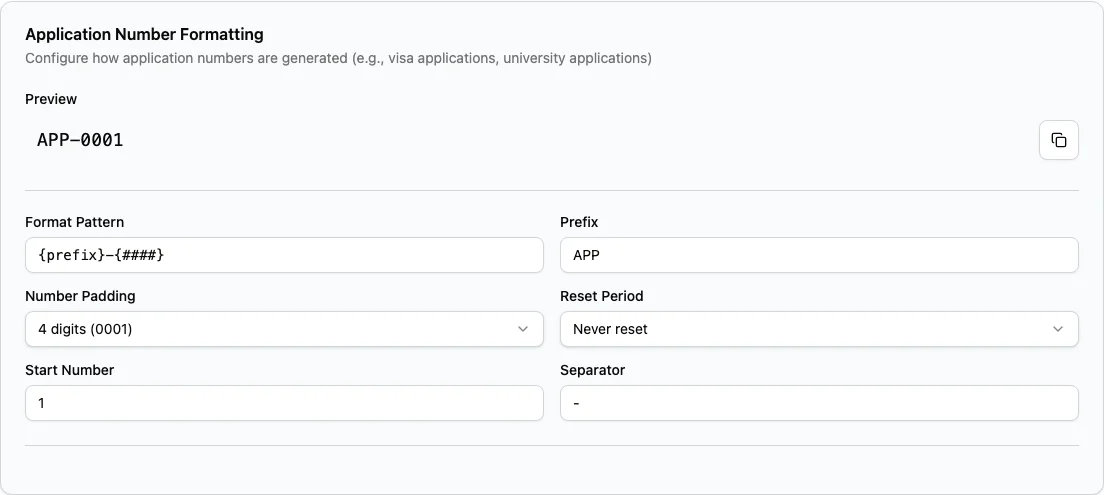
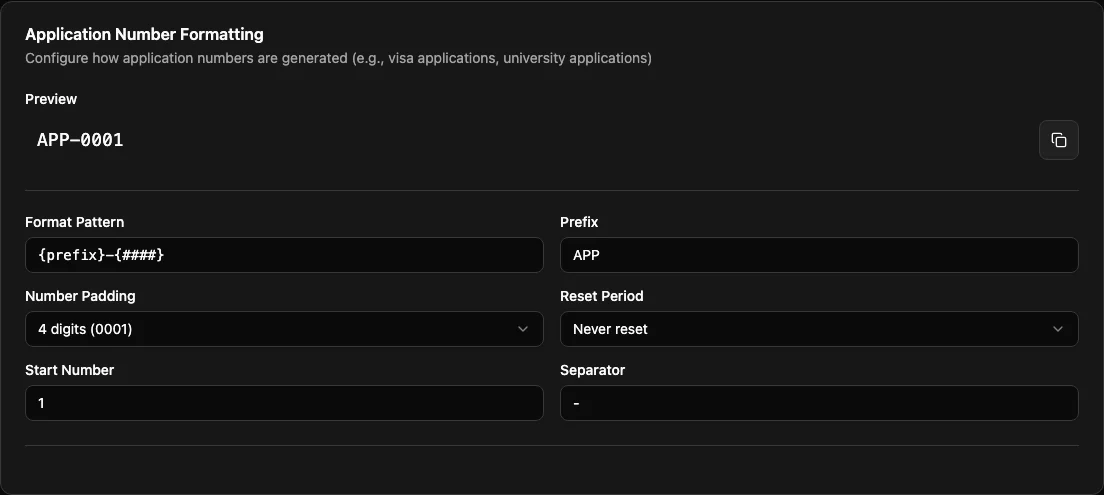
The page title is Number Formatting. The page includes Reset to Defaults and Save Settings actions, an overview section, a current settings summary, and a separate builder for each number type.
Each builder includes:
| Control | What it does |
|---|---|
| Preview | Shows an example number using the current settings. |
| Format Pattern | Defines the parts and order of the number. |
| Prefix | Sets the fixed text used for that number type. |
| Number Padding | Sets how many digits the sequence should show. |
| Reset Period | Decides when the sequence starts over. |
| Start Number | Sets the first sequence number for new records. |
| Separator | Sets the character between parts, such as -, /, or _. |
| Common Formats | Applies a ready-made pattern. |
| Available Tokens | Inserts supported parts into the pattern. |
Select Save Settings after reviewing the previews.
How generated numbers work
A generated number has two jobs:
- Identify the record type quickly.
- Give each new record a readable, unique reference.
For example, APP-2026-0001 tells users the record is an application, it was
numbered in 2026, and it is sequence 0001 for that format.
Edmissa uses the pattern when a new record is created. Changing the pattern does not rename records that already exist. This protects historical links, reports, exports, and messages that may already mention the old number.
Do not treat the sequence as a perfect record count. Number gaps can happen when work is started, canceled, retried, or imported.
Where users see generated numbers
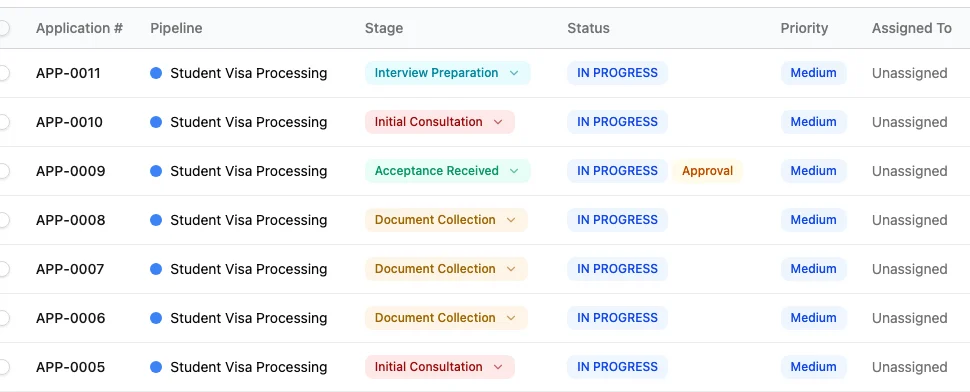
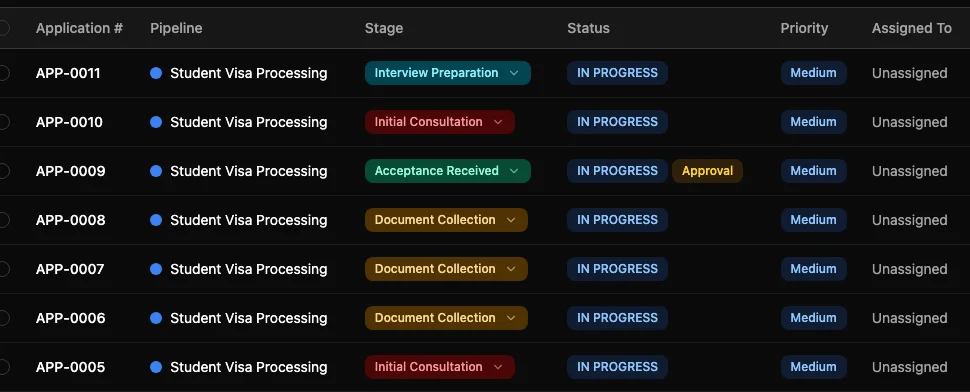
Generated numbers are not only settings previews. Users see them anywhere they identify records, search, or ask teammates to review work.
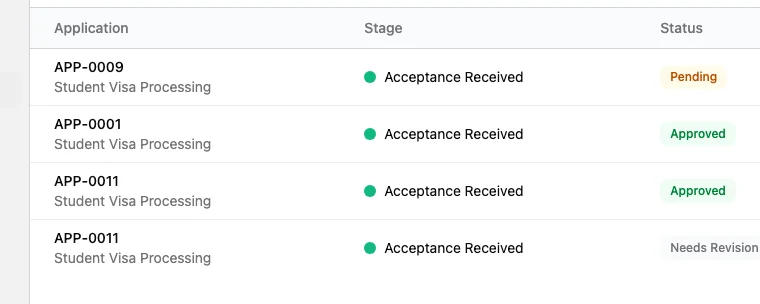
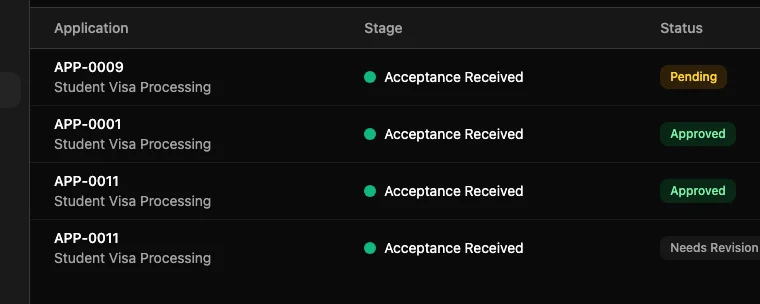
| Work area | How the number appears |
|---|---|
| Applications | The Applications table shows the application number in the Application # column. Pipeline-specific application numbers appear in the same column after new applications are created in that pipeline. |
| Application details and stage changes | The application number appears with the application record so users can confirm they are editing the right application. |
| Approvals | Approval queues use the application number to show which application is waiting for review. |
| Documents, tasks, Leads, and student profiles | Each record uses its own configured prefix and sequence when the record is created and displayed. |
Format pattern tokens
Format Pattern uses tokens. A token is replaced with the current value when Edmissa creates the number.
| Token | Meaning | Example output |
|---|---|---|
{prefix} | The prefix configured in the Prefix field. | APP |
{####} | The sequence number with padding. | 0001 |
{YYYY} | The full year. | 2026 |
{YY} | The two digit year. | 26 |
{MM} | The month. | 07 |
{DD} | The day. | 05 |
The pattern must include a sequence token such as {####}. Use more or fewer
hash characters to match the padding you want, then set Number Padding to the
same length.
Common format patterns
Use the built-in common formats when they match the way your agency works.
| Pattern type | Format pattern | Example |
|---|---|---|
| Simple Sequence | {prefix}-{####} | APP-0001 |
| Year + Sequence | {prefix}-{YYYY}-{####} | APP-2026-0001 |
| Month + Sequence | {prefix}-{MM}-{####} | APP-07-0001 |
| Date + Sequence | {prefix}-{YYYY}{MM}{DD}-{####} | APP-20260705-0001 |
| Custom Format | {prefix}{separator}{YYYY}{separator}{####} | APP-2026-0001 |
For most agencies, Simple Sequence or Year + Sequence is easiest for users to read and search.
Choose prefixes
Prefixes should be short, clear, and stable.
Recommended Edmissa starting prefixes:
| Number type | Recommended prefix | Example |
|---|---|---|
| Student profile | STU | STU-0001 |
| Application | APP | APP-0001 |
| Document | DOC | DOC-0001 |
| Task | TSK | TSK-0001 |
| Approval | APV | APV-0001 |
| Lead | LEAD | LEAD-0001 |
Use different prefixes only when users can explain the difference without checking a separate document. Avoid prefixes that include private internal codes, branch names that may change, or abbreviations only one team understands.
Choose padding and start number
Number Padding controls how many digits the sequence shows.
| Padding | Example | Use it when |
|---|---|---|
| 3 digits | 001 | The number type will stay small. |
| 4 digits | 0001 | The default works for most teams. |
| 5 digits | 00001 | The agency expects many records over time. |
Start Number controls the first number Edmissa uses for new records.
Use Start Number when:
- You are moving from another system.
- You want new numbers to continue after existing references.
- You want a new sequence to start at a higher number, such as
1000.
If the highest imported application number is APP-2026-0420, set the new
application Start Number above 420 for that format.
Choose reset period
Reset Period decides when the sequence starts again.
| Reset period | What it means | Use it when |
|---|---|---|
| Never reset | Numbers keep increasing. | You want the simplest long-term reference. |
| Reset yearly | The sequence starts again each year. | Users often group work by calendar year. |
| Reset monthly | The sequence starts again each month. | Users need compact monthly references and accept repeated sequence numbers across months. |
If you reset yearly or monthly, include {YYYY} or {MM} in the format so the
full number remains clear. For example, use APP-{YYYY}-{####} for yearly
reset instead of only APP-{####}.
Recommended first version
Start with a simple workspace-wide setup.
| Number type | Recommended pattern | Why it works |
|---|---|---|
| Student profile | STU-{####} | Short and easy for counselors to search. |
| Lead | LEAD-{####} | Keeps incoming lead references separate from student profiles. |
| Application | APP-{YYYY}-{####} | Helps users identify the application year. |
| Document | DOC-{####} | Keeps document references compact. |
| Task | TSK-{####} | Gives follow-up work a searchable reference. |
| Approval | APV-{####} | Makes approval requests easy to discuss. |
Use this as the first version unless your agency already has a clear numbering policy. Simple formats are easier to remember and less likely to need changes.
Configure workspace-wide formats
Use this flow for each number type:
- Open Settings.
- Go to Workflow Setup.
- Select Number Formatting.
- Find the builder for the number type.
- Enter the Prefix.
- Choose a Format Pattern or select a Common Format.
- Choose Number Padding.
- Choose the Reset Period.
- Set Start Number if you need to continue from old references.
- Choose the Separator.
- Review the Preview.
- Repeat for the other number types.
- Select Save Settings.
After saving, create one sample record for the number type and confirm the generated number matches the preview.
Use pipeline-specific application numbering
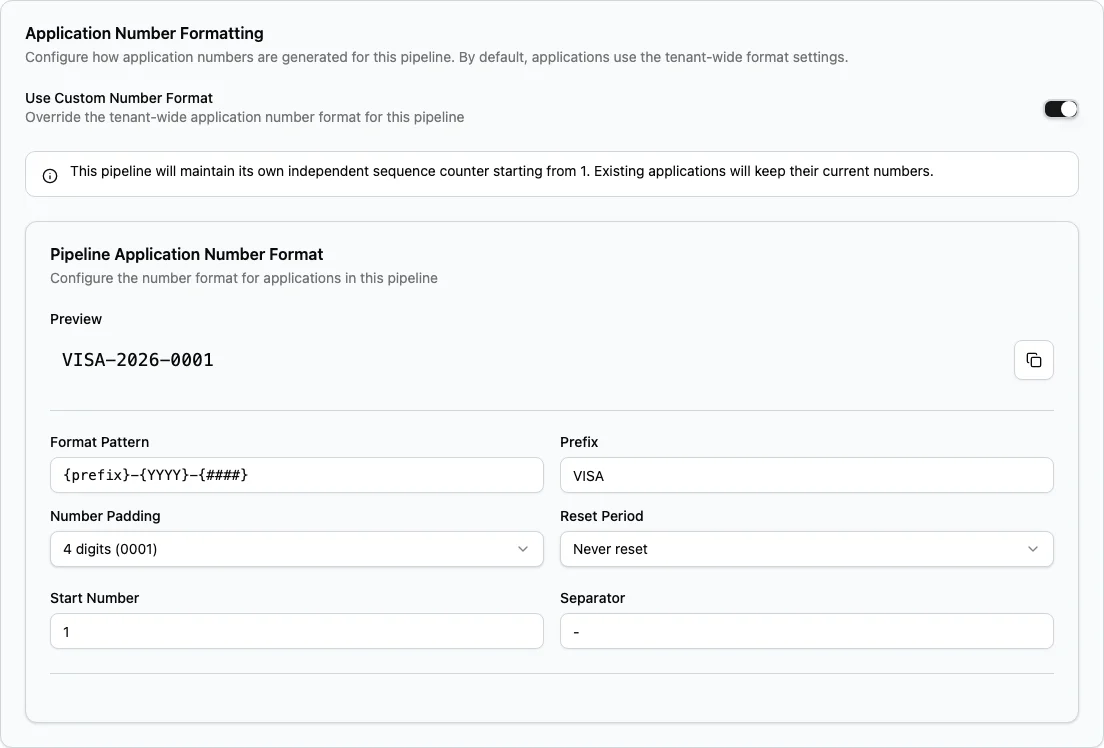
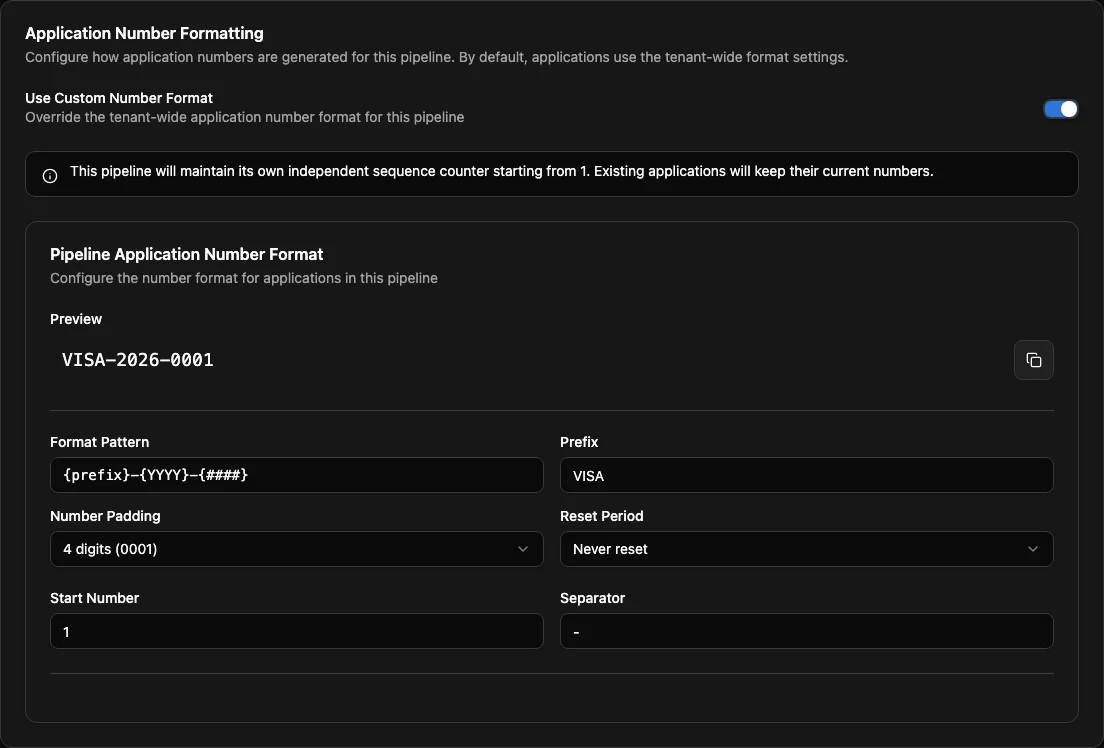
Workspace-wide application numbering is the default for every pipeline. A pipeline-specific override changes only the application numbers for new applications created in that one pipeline.
Use a pipeline-specific override when the number itself needs to tell users
which application workflow it belongs to. For example, a visa workflow might
use VISA-2026-0001, while the general application workflow keeps using
APP-2026-0001.
The override is intentionally narrow:
| Setting or record | What happens |
|---|---|
| Pipeline with Use Custom Number Format off | New applications use the workspace-wide application format and sequence. |
| Pipeline with Use Custom Number Format on | New applications in that pipeline use the pipeline pattern and that pipeline's own sequence. |
| Other pipelines | They keep using their own custom format or the workspace-wide application format. |
| Existing applications | Their application numbers stay as they are. |
| Student profiles, Leads, documents, tasks, and approvals | They keep using the formats from Number Formatting. |
Turning off Use Custom Number Format later sends future applications in that pipeline back to the workspace-wide application format. It does not rename existing applications.
Use this flow when one pipeline needs a custom application number format:
- Open Settings.
- Go to Pipelines.
- Edit the pipeline.
- Find Application Number Formatting.
- Turn on Use Custom Number Format.
- Configure the pipeline application format.
- Review the preview.
- Save the pipeline.
When a pipeline uses a custom application format, that pipeline keeps its own application sequence. Existing applications keep their current numbers.
For example, an agency may use:
| Pipeline | Pattern | Example |
|---|---|---|
| Student Visa Processing | VISA-{YYYY}-{####} | VISA-2026-0001 |
| University Admission | ADM-{YYYY}-{####} | ADM-2026-0001 |
| Pre-Departure Support | Use workspace-wide format | APP-2026-0001 |
Do not create separate pipeline numbering just because a pipeline has a different stage list. Use separate numbering only when users need the number itself to identify the workflow.
Migration guidance
If your agency is moving from spreadsheets or another system:
- List the current numbering patterns.
- Note the highest number used for each record type.
- Choose whether Edmissa should continue the old pattern or start a cleaner new one.
- Set Start Number above the highest existing sequence when continuing a pattern.
- Use a new prefix when you want users to know a record was created in Edmissa.
- Create sample records and compare them with the imported references.
Avoid changing formats during migration unless the team understands which records use the old pattern and which records use the new pattern.
Test before the team uses it
Before users create live records:
- Save the Number Formatting settings.
- Create a sample lead and confirm the lead number.
- Convert or create a sample student profile and confirm the student profile number.
- Create a sample application and confirm the application number.
- Upload or generate a sample document if your workflow creates document numbers.
- Create a sample task and confirm the task number.
- Trigger a sample approval if your workflow uses approvals.
- Search for each sample number.
- Ask one counselor and one application officer to confirm the format is easy to read.
- Delete or archive the sample records if your testing process requires it.
Test pipeline-specific application numbering separately by creating a sample application in that pipeline.
When to change number formats later
Review Number Formatting when:
- Users cannot tell what a number belongs to.
- Search is harder because prefixes are too long or too similar.
- The agency starts using a new application workflow that needs its own number pattern.
- Imported data needs numbering to continue from old references.
- A country or region process needs a clearer application prefix.
- Yearly or monthly reporting would be easier with a date token in the number.
Avoid frequent changes. Every change creates a visible difference between old and new records.
Related guides
| Guide | Use it for |
|---|---|
| Setup overview | Decide when to configure numbering during first setup. |
| Lead Sources | Track where Leads came from after Lead numbers are generated. |
| Pipelines | Configure application workflows before deciding whether pipeline-specific numbering is needed. |
| Pipeline stages | Understand the stages where users will see application numbers in daily work. |
| Field configuration | Configure numeric fields, currency fields, and percentage fields separately from record numbering. |
| Applications | See how application numbers help users find and discuss application work. |