
Notifications
Set the workspace notification defaults that Edmissa applies to new users.
Notifications help your team see work that needs attention without turning every update into noise. Admins use Notification Defaults to choose the standard channels and categories for the workspace.
Open notification defaults
Go to Settings > Communications > Notifications.
The page title is Notification Defaults. Only users with notification management access can open and save these settings.
What these settings control
Notification defaults are workspace-level preferences for new users. They set which delivery channels are available by default and which categories use each channel.
These defaults do not force every existing user to change their personal notification preferences. Existing users can still adjust their own preferences where personal notification settings are available. If an admin resets a user's preferences to workspace defaults, Edmissa applies the current values saved on this page.
For message wording, use Notification templates.
Global Channels
Use the Global Channels tab to turn each delivery channel on or off for the workspace.
| Channel | What it does |
|---|---|
| In-App Notifications | Shows notifications in the notification center. |
| Email Notifications | Sends email messages for selected notification categories. |
| SMS Notifications | Sends text messages when SMS delivery is enabled for the workspace. |
| Push Notifications | Sends browser push notifications when push delivery is available. |
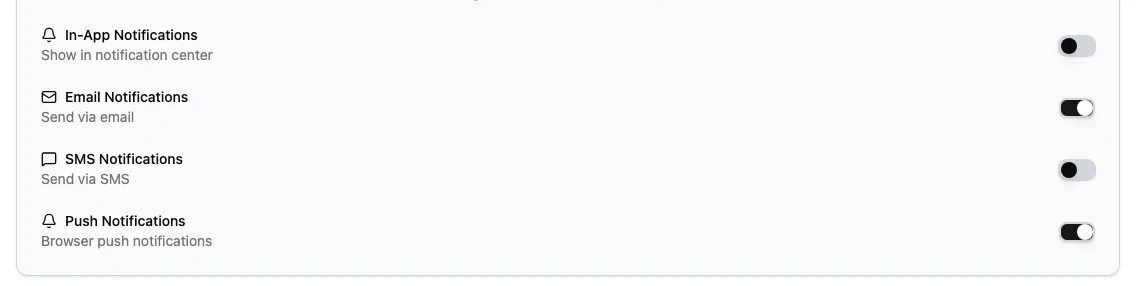
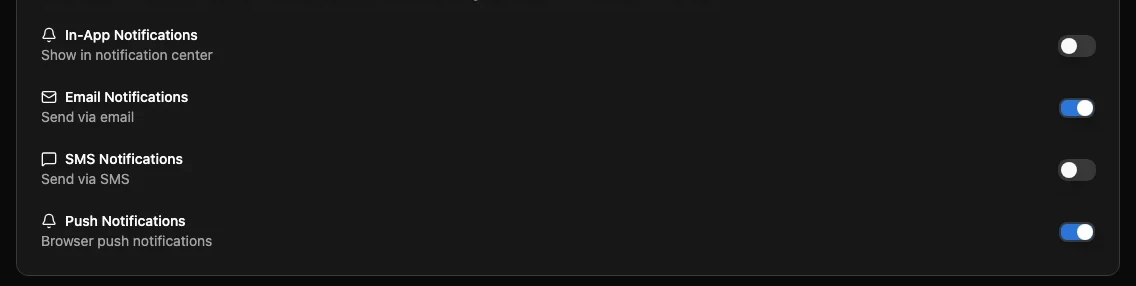
If a global channel is off, Edmissa disables that channel inside category settings too. For example, if SMS Notifications is off globally, category buttons for SMS cannot be selected.
After changing global channels, click Save Defaults.
Category Preferences
Use the Category Preferences tab to decide which channels each notification category uses by default.
Each category card includes Default Channels. Select the channel buttons you want Edmissa to use for that category. A selected button means the channel is part of the default for that category. A disabled button usually means the channel is turned off globally.
Edmissa groups notifications into these kinds of work:
| Category | Use it for |
|---|---|
| Student profile activity | Creation, updates, and important changes on student profiles. |
| Applications | Application status changes, assignments, and workflow movement. |
| Tasks | Task assignments, completions, and deadline reminders. |
| User Management | Invitations, registrations, and role changes. |
| System | Maintenance, updates, and data export messages. |
| Security | Account protection, authentication, and suspicious activity alerts. |
| Workflows | Workflow triggers, automations, and pipeline events. |
| Reminders | Scheduled reminders and follow-up messages. |
| Custom | Custom notifications configured by admins. |
Current Configuration Summary
The summary at the bottom of the page shows:
- Enabled Channels, which lists each global channel as enabled or inactive.
- Categories with Multiple Channels, which shows categories that will use more than one delivery channel.
Use this summary as a final scan before saving. It is especially useful when you want urgent categories to use email and in-app notifications, while routine categories stay in-app only.
Suggested first setup
Start simple, then adjust after the team has used Edmissa for a few weeks.
- Keep In-App Notifications on for most categories.
- Turn Email Notifications on for applications, security, workflow, and reminder categories.
- Use Push Notifications only when users expect browser alerts.
- Use SMS Notifications only for important alerts and only when SMS delivery is enabled for the workspace.
- Keep routine task updates in-app unless your team regularly misses them.
Troubleshooting
A channel cannot be selected for a category
Check the Global Channels tab. A category cannot use a channel that is turned off globally.
Existing users did not change after saving defaults
Defaults are mainly for new users. Existing users may keep their personal preferences until they update them or an admin resets them to workspace defaults.
Users are getting too many notifications
Move routine categories to In-App Notifications only. Keep email, SMS, and push for time-sensitive work such as security alerts, application movement, important reminders, and missed deadlines.
A message has the wrong wording
Edit the related notification template rather than the defaults. Defaults decide where notifications go. Templates decide what the message says.